

How to Choose a GPU Workstation for AI and Machine Learning: A Buyer’s Guide
The right GPU workstation for AI starts with one number: how much GPU memory (VRAM) your models need. If a model and its working data fit in VRAM, it runs fast. If they do not, it either fails to load or slows to a crawl. Everything else, from the CPU to the power supply, should be chosen to keep that GPU fed, cool and stable.
For most Singapore teams, the decision comes down to three paths. A single high-memory consumer or entry pro GPU suits prototyping and running small to mid-sized models. A professional card with 48 GB to 96 GB of memory suits serious fine-tuning, larger local language models and shared team use. A compact unified-memory system such as NVIDIA DGX Spark suits developers who want to load very large models on a desk without building a tower.
This buyer’s guide explains how to size VRAM, compare current GPU options, match the rest of the build, and avoid the mistakes that waste budget. It is written for SMEs, data teams, researchers and creators buying in Singapore.
Quick answer: which GPU workstation for AI fits your work?
| Your main workload | Suggested starting point | Why |
|---|---|---|
| Learning, small models, computer vision prototypes | One GPU with 24–32 GB VRAM | Enough for most small models and 4-bit quantised LLMs in the 7B–30B range |
| Running local LLMs for a team, RAG, moderate fine-tuning | One GPU with 48–96 GB VRAM | Room for larger models, longer context and several users |
| Very large models for inference and testing on a desk | Unified-memory system (e.g. DGX Spark, up to 128 GB) | Large memory pool in a small, low-power box |
| Heavy training, many experiments in parallel | Multi-GPU tower or rack, or cloud GPUs | Scales beyond one card; compare costs with cloud first |
Step 1: Work out how much VRAM you need
VRAM is the hard limit. A faster GPU with too little memory is often worse than a slower one with enough. Start by listing the largest model you expect to run in the next two to three years, then estimate its memory needs.
A simple rule for inference
Model weights take roughly parameters × bytes per parameter:
- 16-bit (FP16/BF16): about 2 bytes per parameter, so a 7B model needs about 14 GB for weights alone.
- 8-bit: about 1 byte per parameter, so a 7B model needs about 7 GB.
- 4-bit: about 0.5 bytes per parameter, so a 70B model needs about 35 GB.
Then add headroom. Long prompts and many simultaneous users consume extra memory for the key-value (KV) cache, and frameworks need working space. A safe habit is to add 20–30% on top of the weights, and more if you plan long context windows.
Training and fine-tuning need far more
Full training stores gradients and optimiser states as well as weights, so memory needs can be several times the inference figure. Parameter-efficient methods such as LoRA and QLoRA cut this sharply, which is why many SMEs fine-tune on a single workstation and leave full training to the cloud. If your plan includes full fine-tuning of large models, budget for the most memory you can afford, or plan for cloud GPUs.
Memory bandwidth matters too
For language model inference, speed is often limited by how quickly the GPU can read memory. Two systems with the same capacity can feel very different if one has much higher bandwidth. Always compare GB/s alongside GB.
Step 2: Compare current GPU options
The table below uses manufacturer-published specifications. Prices move quickly in 2026 because of global memory supply constraints, so treat any figure as a starting point and get current quotes.
| Option | Memory | Bandwidth | Max power | Best for |
|---|---|---|---|---|
| NVIDIA RTX PRO 6000 Blackwell Workstation Edition | 96 GB GDDR7 ECC | 1,792 GB/s | 600 W | Largest single-card memory for local LLMs, fine-tuning, rendering |
| NVIDIA RTX PRO 6000 Blackwell Max-Q | 96 GB GDDR7 ECC | 1,792 GB/s | 300 W | Multi-GPU towers (NVIDIA says up to four per workstation) |
| NVIDIA RTX PRO 5000 Blackwell | 48 GB or 72 GB GDDR7 ECC | 1,344 GB/s | 300 W | Team inference and fine-tuning at lower cost than the 6000 |
| NVIDIA RTX PRO 4500 Blackwell | 32 GB GDDR7 ECC | 896 GB/s | 200 W | Mid-range pro workstations, data science |
| NVIDIA RTX PRO 4000 Blackwell | 24 GB GDDR7 ECC | 672 GB/s | About 140 W | Compact, quieter builds and entry AI work |
| NVIDIA GeForce RTX 5090 | 32 GB GDDR7 | See NVIDIA specs | 575 W (TDP) | Individual developers wanting high speed per dollar |
| AMD Radeon AI PRO R9700 | 32 GB GDDR6 | 640 GB/s | 300 W | Lower-cost 32 GB option for teams using AMD ROCm |
| NVIDIA DGX Spark (GB10) | 64 GB or 128 GB unified LPDDR5X | 273 GB/s | 240 W power supply | Loading very large models on a desk; Linux developer box |
Professional RTX PRO cards
NVIDIA’s RTX PRO Blackwell desktop cards add ECC memory, professional drivers and more VRAM than consumer cards at each tier. The flagship RTX PRO 6000 Blackwell Workstation Edition has 96 GB of GDDR7 with ECC and 1,792 GB/s of bandwidth, according to NVIDIA’s product page. The Max-Q version keeps the same memory at a 300 W limit, which makes multi-GPU builds easier to power and cool.
- Pros: large VRAM, ECC, certified drivers, blower or efficient designs for multi-GPU towers.
- Cons: high cost; Singapore prices are usually quote-based through resellers and system integrators.
GeForce RTX 5090
The RTX 5090 has 32 GB of GDDR7 and is popular with individual developers because it is fast and widely sold at retail. Singapore retail listings seen during 2026 have ranged from roughly S$4,600 to well above S$7,000, depending on model and stock.
- Pros: strong speed, easy to buy, works with the full CUDA software stack.
- Cons: 32 GB limits larger models; large, power-hungry cards are hard to fit more than one per case; no ECC.
AMD Radeon AI PRO R9700
AMD’s R9700 offers 32 GB of GDDR6 and 640 GB/s at a launch price reported at US$1,299. It supports AMD’s ROCm software platform.
- Pros: low cost per GB of VRAM; designed for multi-card setups.
- Cons: check that your frameworks and tools support ROCm well before buying; some AI software still targets CUDA first.
NVIDIA DGX Spark and GB10 systems
DGX Spark is a small desktop built on the GB10 Grace Blackwell Superchip. NVIDIA states it offers up to 128 GB of unified memory, up to 1 petaFLOP of FP4 AI performance (with sparsity), inference on models up to 200 billion parameters and fine-tuning up to 70 billion parameters. It ships with NVIDIA DGX OS, an Ubuntu-based Linux. A 64 GB version is sold through OEM partners, and partners such as Acer, ASUS, Dell, Gigabyte, HP, Lenovo and MSI sell GB10-based systems. Reported US pricing in October 2026 was about US$6,950 for 128 GB and from US$4,999 for 64 GB; check local partners for SGD pricing.
- Pros: very large memory pool, small and quiet, low power, can cluster up to four units.
- Cons: memory bandwidth is much lower than high-end discrete GPUs, so token speed is lower; Arm-based Linux, not a Windows workstation.
Step 3: Match the CPU, RAM and storage to the GPU
The GPU does the heavy lifting, but a weak platform can starve it.
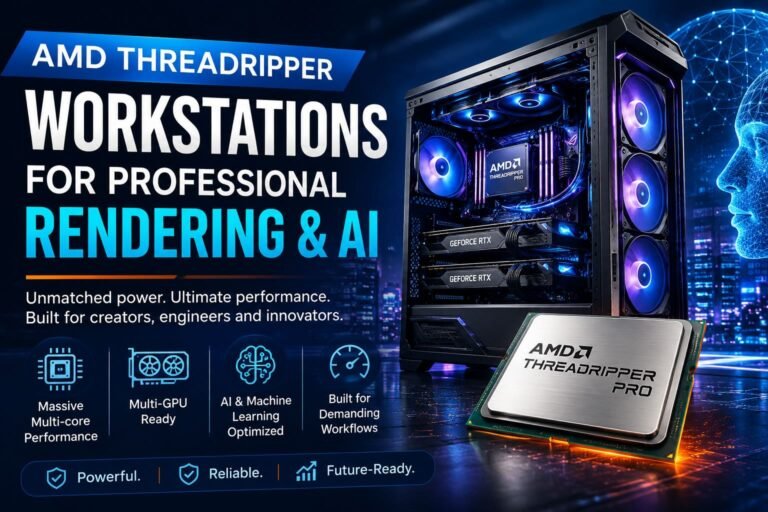
- CPU: for one GPU, a modern desktop CPU with 12–16 cores is usually enough. For two or more GPUs, a workstation platform such as AMD Threadripper or Intel Xeon gives you more PCIe lanes and memory channels. Our guide to AMD Threadripper workstations for rendering and AI covers why core counts and lanes matter.
- System RAM: a common rule is at least double your total VRAM, so data loading, preprocessing and model offloading do not stall. A single 32 GB GPU pairs well with 64–128 GB of RAM; a 96 GB card with 192 GB or more.
- Storage: use fast NVMe SSDs for datasets and model files. Model checkpoints are large, so plan 2–4 TB as a minimum and keep a separate drive or NAS for backups.
- PCIe: check that each GPU gets a full x16 slot where possible, and that cards physically fit with space for airflow.
Step 4: Plan power, cooling and noise
This is where many first builds go wrong. A 600 W GPU, a high-core CPU and storage can push a system well past 1,000 W under load.
- Power supply: size the PSU with at least 30% headroom over peak draw, and choose a quality unit with the right GPU power connectors.
- Office circuits: Singapore uses 230 V outlets. Two or more high-power workstations on one circuit can trip breakers. Check with your building or electrician before adding several machines.
- Heat: AI jobs run for hours. In a warm, humid climate, a workstation in a small room can heat it quickly. Make sure the room has steady air-conditioning, or consider a server room or co-location.
- Noise: multi-GPU towers can be loud. If staff sit nearby, Max-Q or lower-power cards are easier to live with.
Step 5: Check the software stack before you buy
- Framework support: confirm that PyTorch, TensorFlow, your inference server (for example vLLM, Ollama or llama.cpp) and any vendor tools support your chosen GPU and operating system.
- Operating system: most AI tooling is best supported on Linux. Windows with WSL2 works for many developers but adds a layer to troubleshoot.
- Drivers: professional cards use enterprise driver branches with longer support cycles, which helps IT teams that need stable machines.
- Remote access: if several staff will share the machine, plan for user accounts, job scheduling and remote access from day one.
Step 6: Decide between buying and renting cloud GPUs
A workstation is a fixed cost that pays off when it is busy. Cloud GPUs cost more per hour but need no upfront spend and scale instantly.
| Factor | Own GPU workstation | Cloud GPUs |
|---|---|---|
| Cost pattern | Upfront purchase, then power and maintenance | Pay per hour or per month |
| Best when | Used most working days for months | Short projects, spikes, very large training jobs |
| Data location | Stays on your premises | Depends on provider region and settings |
| Scaling | Limited by slots, power and budget | Add GPUs on demand, subject to availability |
| Maintenance | Your team or an IT vendor | Provider handles hardware |
Many businesses use both: a local workstation for daily development and sensitive data, and the cloud for occasional heavy training. Our cloud computing section covers the cloud side in more detail.
Singapore buying tips
- Get several quotes: professional GPUs and pre-built AI workstations are often sold by resellers and system integrators on quotation. Compare the full system, not just the GPU price. Our list of places to buy a desktop PC in Singapore is a useful starting point for retail options.
- Check warranty and on-site support: ask whether the warranty is local, whether it is on-site or carry-in, and how long a GPU replacement takes.
- Confirm GST and delivery: quotes should state whether the 9% GST is included, and whether delivery and installation are covered.
- Data protection: keeping data on a local workstation can simplify control, but it does not remove your duties under the Personal Data Protection Act (PDPA). Encrypt drives, control access and log who uses the system.
- Grants: some IT purchases may qualify for government support for SMEs. Eligibility and pre-approved solutions change, so check current details with IMDA and Enterprise Singapore before committing.
Common mistakes to avoid
- Buying for speed, not memory: a fast card that cannot load your model is the wrong card.
- Underpowered PSU or cooling: throttling and crashes waste the money spent on the GPU.
- Too little system RAM: data loading becomes the bottleneck.
- Ignoring the software stack: check framework and driver support before ordering.
- No upgrade path: choose a case, motherboard and PSU that can take a second GPU later if your needs grow.
- Skipping backups: datasets, fine-tuned models and code need a backup plan from the start.
If you already own a capable PC, a targeted upgrade may be enough. See our top PC hardware upgrades before buying a whole new system.
Buyer’s checklist
- Largest model you plan to run, and at what precision
- Required VRAM including 20–30% headroom
- Number of users and concurrent jobs
- GPU choice and confirmed software support
- CPU platform with enough PCIe lanes for future GPUs
- System RAM at about double total VRAM
- NVMe storage plus a backup target
- PSU with at least 30% headroom; office circuit checked
- Room cooling and acceptable noise level
- Local warranty, support terms and GST confirmed in the quote
Frequently asked questions
How much VRAM do I need for AI and machine learning?
For learning and small models, 24–32 GB is a practical start. For running 70B-class language models with 4-bit quantisation, plan for at least 48 GB. For larger models, longer context or several users, 96 GB or a unified-memory system with 128 GB gives more room.
Is a gaming GPU good enough for AI work?
Often, yes, for individual developers. A card such as the GeForce RTX 5090 with 32 GB runs many models well. Professional cards add more memory, ECC and enterprise drivers, which matter more for shared, business-critical systems.
Should I choose NVIDIA or AMD for machine learning?
NVIDIA’s CUDA ecosystem has the widest software support. AMD’s ROCm platform has improved and AMD cards can offer more VRAM per dollar, but confirm that every tool you rely on supports ROCm before you buy.
Is DGX Spark a replacement for a GPU workstation?
Not exactly. DGX Spark loads very large models thanks to up to 128 GB of unified memory, but its memory bandwidth is lower than high-end discrete GPUs, so it is usually slower per request. It suits developers who need capacity in a small, low-power Linux box.
Is it cheaper to buy a workstation or rent cloud GPUs?
It depends on use. A workstation that is busy most working days for many months usually costs less over time. For short projects or occasional large training runs, the cloud is often cheaper and more flexible.

One Comment