Top 3 PC Hardware Upgrades That Deliver the Biggest Performance Boost
If your PC feels sluggish, you might not need to toss the whole thing out. With the right hardware swap, you can tackle that one weak link dragging everything down—whether it’s slow startups, laggy multitasking, or choppy game frame rates. And honestly, it’s usually way cheaper than buying a new rig.
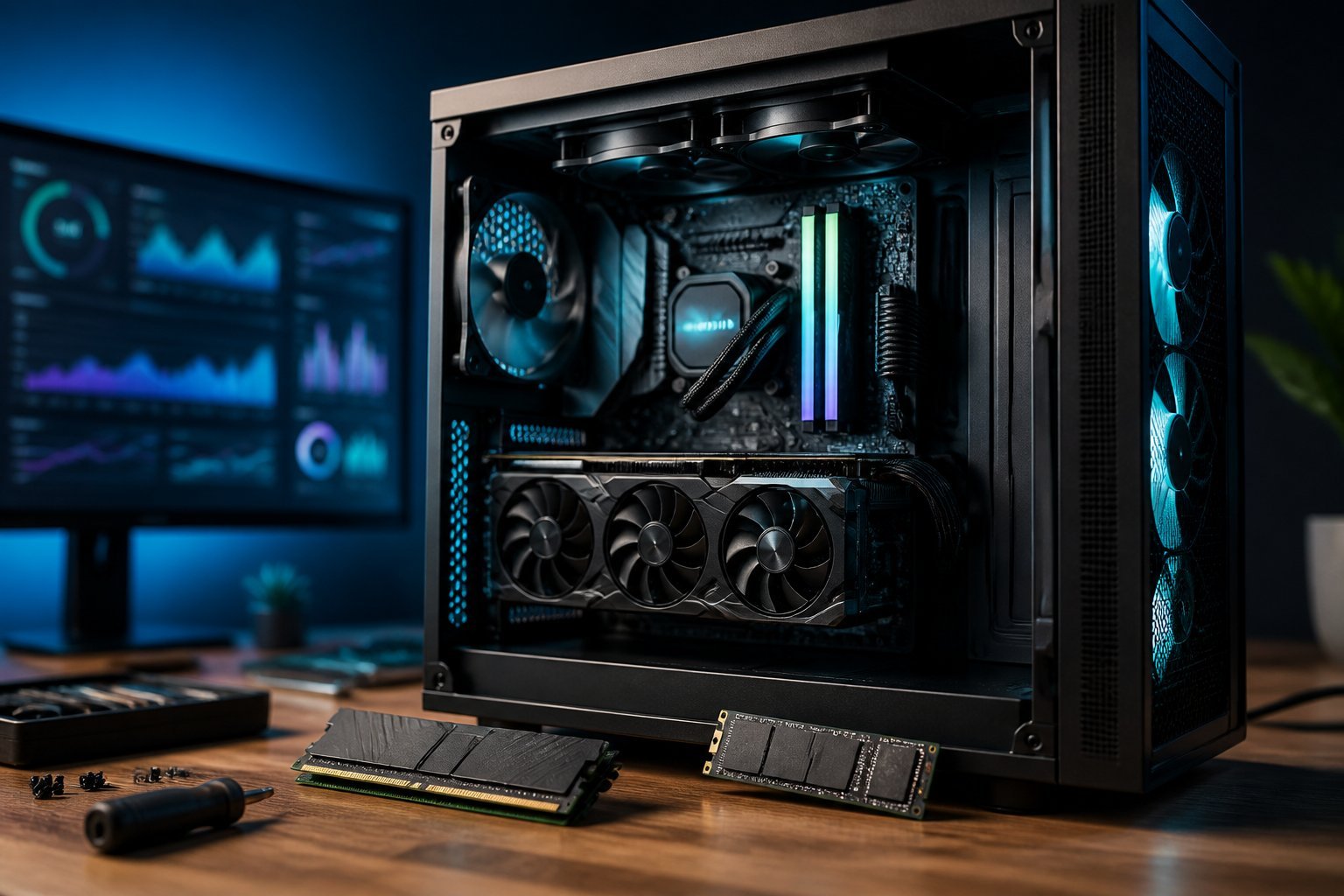
The three upgrades that tend to make the biggest difference? SSDs, more (or faster) RAM, and a better graphics card if you’re into gaming. Which one’s best for you?
Well, it really depends on what’s holding your system back. Sometimes a quick check with an upgrade advisor or just poking around Task Manager can tell you if it’s storage, memory, or graphics that needs a nudge.
Let’s dig into how these upgrades stack up for real-world impact and value. I’ll also try to match each one to the kinds of stuff people actually do: whether that’s just daily work, heavy creative projects, or chasing the best gaming experience.
Choose the Upgrade That Removes Your Bottleneck
The best upgrade is the one that fixes whatever’s slowing you down. If you can figure out whether it’s the CPU, GPU, RAM, or storage that’s the culprit and double-check if the new part fits your motherboard, power supply, and case, you’ll get the most bang for your buck.
Match Symptoms to CPU, GPU, RAM, or Storage Limits
A CPU bottleneck usually shows up when you’re doing stuff like simulation, compiling code, editing video, or pushing high frame rates in games. If your GPU isn’t working that hard but your frame rates are all over the place, your processor might be lagging behind. High CPU usage, especially on the cores your game or app is using, is another dead giveaway.
A GPU bottleneck is more obvious when you’re gaming and your graphics card is maxed out. This happens a lot at higher resolutions or when you crank up the settings. If your CPU, power supply, and case can handle it, a better GPU can boost FPS and visuals.
Not enough RAM? You’ll see paging, apps reloading, stuttering, or just plain sluggish multitasking. Task Manager can show if your memory’s always tapped out when things slow down. Adding more RAM only helps if you’re actually running out, it won’t fix a slow CPU or GPU.
Storage is mostly about boot times, opening programs, file transfers, and game load screens, and not really about in-game FPS. Swapping a hard drive for an SSD can make everything feel snappier, but you’ll need an M.2 slot and NVMe support for the fastest drives.
Check Compatibility Before You Buy
Whatever you upgrade, make sure it actually works with your system. For CPUs, you’ll need to check the motherboard socket, chipset, supported CPUs, BIOS version, power delivery, and even whether your cooler fits. Intel and AMD use different sockets, and sometimes even chips from the same brand need different boards.
RAM gets tricky too. DDR4 and DDR5 don’t mix, and your motherboard decides what speeds, sizes, and configs it can handle. Mixing old and new RAM can cause weird issues, so it’s worth checking the details.
For GPUs, pay attention to card size, power connectors, your PSU’s wattage, and whether it’ll even fit in your case. Storage upgrades mean checking the interface, M.2 size, PCIe version, and making sure you’re not blocking other slots. Compatibility tools can help, but double-checking with your motherboard and parts’ official specs is a good move.
Prioritize Upgrades by Gaming Resolution and Workload
What you play and at what resolution really changes which upgrade is worth it. At 1080p, especially if you’re after super high frame rates (like 144Hz), the CPU can actually be the bottleneck. At 1440p or 4K, the GPU usually has to work a lot harder since it’s pushing way more pixels.
The game itself matters too. Competitive games often need a strong CPU for steady frame times, but big, cinematic single-player games usually put more pressure on the graphics card (especially VRAM). If you want to be sure, monitor your GPU and CPU usage, temps, and frame times during actual gameplay instead of just trusting online calculators.
Workstation tasks are a different beast. Video editing can benefit from more RAM, a faster CPU, GPU acceleration, and speedy storage for source files. If you run lots of apps or virtual machines, memory is king. Storage upgrades mainly help with big file transfers and loading stuff. Honestly, the smartest upgrade is the one that fixes your actual pain point but don’t just buy the newest thing because it’s trendy.
The Three Upgrades With the Biggest Real-World Impact
If you want to actually notice a difference, swapping a hard drive for an SSD, adding enough RAM, or upgrading your graphics card (for gaming) are usually the top moves. Of course, don’t forget about power and cooling. Seriously, nothing kills a new build faster than a weak PSU or bad airflow. Stable operation is kind of the unsung hero here.
Install an NVMe SSD for Faster Boot and Load Times
Switching from an old HDD to an SSD is probably the most dramatic upgrade for everyday use. Windows, apps, and games just snap open, and you can finally stop staring at loading bars. Sure, hard drives are still fine for bulk storage, but for anything you use a lot, they just feel ancient.
An NVMe SSD in an M.2 slot blows away SATA SSDs for raw speed, especially if your board supports PCIe 4.0 or even 5.0. Those top-end drives can hit crazy numbers (like 12,000 MB/s), but honestly, most folks will notice the jump in responsiveness and space more than peak speeds. PCIe 4.0 is usually the sweet spot unless you’re chasing benchmarks.
Before you buy, check if your motherboard has the right M.2 slot, what PCIe gen it supports, and how much storage you’ll actually use. A 1TB or 2TB SSD gives you breathing room for games and updates so you’re not constantly shuffling files. Faster drives help with games that stream assets a lot, though they won’t magically boost your FPS if the GPU’s the limiting factor.
Add RAM to Eliminate Multitasking Slowdowns
Not enough RAM? You’ll feel it when switching between apps or if your browser’s loaded with tabs. Even a 16GB setup can stutter with a game, voice chat, and a bunch of background stuff all running. Upping the capacity usually helps more than chasing super-fast RAM speeds.
16GB is still decent for office work and plenty of games. 32GB is where you want to be for gaming, content creation, or heavy multitasking. If you’re editing video, working with giant images, running virtual machines, or using pro apps, 64GB (or more) might be worth it.
Just make sure the RAM matches your platform. Most older PCs use DDR4; newer builds are DDR5. They’re not cross-compatible. Dual-channel (two matched sticks) is best, and the right slots matter for performance. Faster RAM can help a bit in CPU-bound games, but honestly, stability and enough capacity are more important than chasing the highest clocks.
Upgrade the GPU for Higher FPS and Visual Settings
If your games look rough or can’t hit the frame rates you want, a new graphics card is the obvious fix. You’ll get smoother FPS, better visuals, and can turn on features like ray tracing or higher resolutions, assuming your CPU can keep up.
For 1080p, something like an RTX 4060 keeps things efficient. If you’re gaming at 1440p, cards like the RTX 4070, RTX 5070, or RX 7800 XT are solid. For 4K or demanding ray tracing, yeah, you’ll need something beefier—and your processor better not be a bottleneck.
Before buying, double-check VRAM (12GB+ is safer for new games), card size, your case, monitor resolution, and power connections. Software and driver updates matter too, and sometimes a little tweaking in-game goes a long way after you install the new card.
Support Major Upgrades With Power and Cooling
Upgrading to a beefier GPU or CPU can really put your power supply to the test. It’s worth checking that your PSU actually meets the wattage and connector requirements the manufacturer suggests, not just hoping for the best. You’ll want something with decent voltage regulation—here’s a good read on that: reliable voltage regulation. Personally, I’d rather have a quality ATX supply with some extra headroom than cross my fingers with an aging unit that’s barely hanging on.
Cooling’s another thing that sneaks up on people. Just two well-placed case fans—one pulling air in up front, one pushing it out in the back—can make a real difference. Dust filters help too, but only if you remember to clean them, and heatsinks need a bit of attention now and then. If your CPU’s a real powerhouse, those little stock coolers just don’t cut it; a tower air cooler is usually a better bet. Water cooling? Sure, it works, but it’s pricier, there’s pump noise, and honestly, installation isn’t everyone’s cup of tea.
If you’re overclocking, you’ll need even more breathing room for both power and cooling. Stuff like Wi‑Fi 7 or a mechanical keyboard is nice—makes things snappier or just feels good to use—but let’s be honest, those upgrades won’t fix bottlenecks in storage, RAM, GPU, power, or cooling.